

Share This:
Quick Answer
- Detect: Run terraform plan -refresh-only to see drift without touching infrastructure.
- Fix: Run terraform apply to revert, OR terraform apply -refresh-only + update config to accept the change, OR terraform import for untracked resources.
- Prevent: Restrict console access, use remote state with locking, and schedule nightly CI drift checks.
- Scale: Use HCP Terraform, Spacelift, or env0 for automated continuous drift monitoring across workspaces.
You write Terraform, you apply it, you merge the PR — and everything matches. Until it doesn’t. A week later, an on-call engineer makes a quick fix in the AWS console at 2 AM. An autoscaler quietly tweaks a resource. A third-party security tool modifies a rule. Terraform’s state file has no idea any of this happened.
The result is infrastructure drift: the quiet gap between what your configuration says should exist and what actually runs in production. Left unchecked, drift causes surprise plan outputs, compliance violations, runaway cloud costs, and the kind of 3 AM incident where nobody can explain why Terraform wants to destroy a database that’s serving live traffic.
In this guide you’ll learn how to detect, diagnose, fix, and prevent Terraform state drift — with working commands, real code examples, CI automation patterns, a compliance angle your security team will appreciate, and a troubleshooting section for the edge cases that burn teams the most.
1. What Is Terraform State Drift?
Terraform tracks your infrastructure through a state file (terraform.tfstate) — a JSON document mapping your .tf configuration to real cloud resources. Every plan and apply compares the state file against what’s currently deployed. When they don’t match, Terraform treats that as a desired change — which may mean overwriting something you didn’t intend to change.
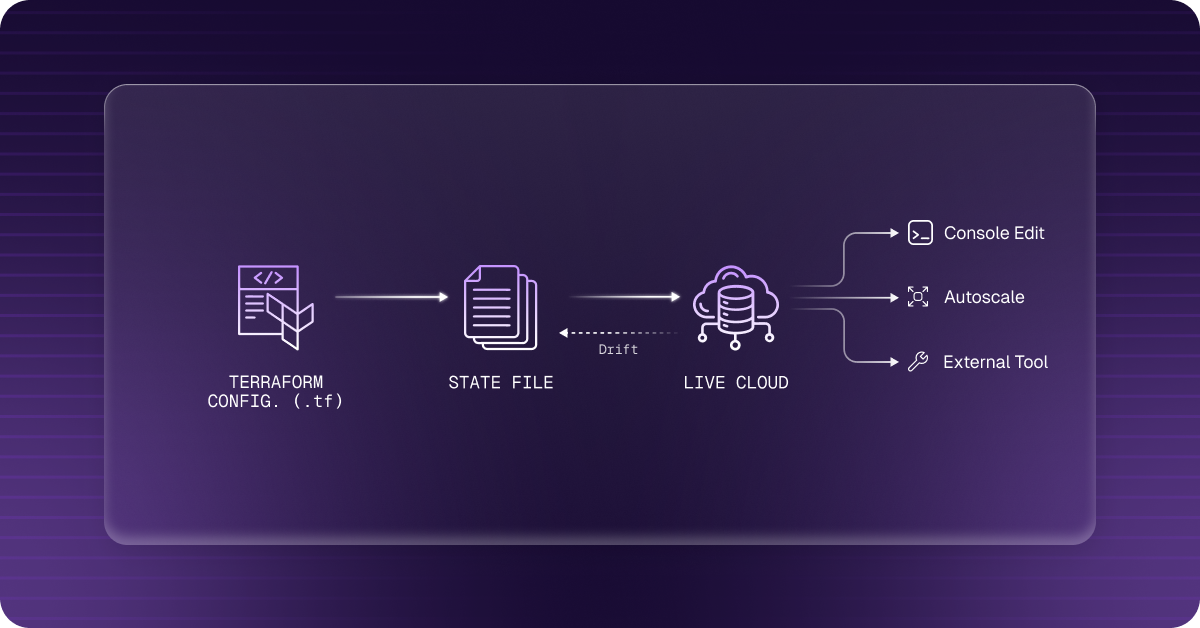
Drift is a three-way divergence:
A concrete example: your config sets an Auto Scaling Group with max_size = 5. During a traffic spike, an engineer bumps it to max_size = 10 in the AWS console. The state file still shows 5. Next terraform plan: Terraform wants to set it back to 5 — in production, during peak traffic.
2. Why Drift Happens
Most drift isn’t malicious — it comes from the gap between how teams intend to manage infrastructure and how they actually do it day-to-day:
3. Why Drift Matters — Security, Compliance and Cost
Drift isn’t just operationally annoying — it creates compounding risk at the compliance, security, and cost layers that audit teams and CFOs care about:
- Security vulnerabilities — An open security group rule added manually can sit untracked for months, invisible in your Terraform state and therefore never reviewed in code review.
- Compliance violations (SOC 2, HIPAA, PCI-DSS) — Undocumented changes break audit trails. Many compliance frameworks require that every infrastructure change be approved, logged, and traceable back to a code commit. Drift is a direct violation of this. As one platform engineer put it: “We failed an audit because we couldn’t prove who approved an infrastructure change 6 months ago.”
- Runaway cloud cost — Oversized instances, extra EBS volumes, or forgotten resources persisting outside Terraform’s view burn budget silently. Most engineering teams calculate they’re over-provisioned by 20–40% — drift makes that worse and harder to track.
- Accidental destruction — The most dangerous consequence: Terraform may plan a -/+ (destroy and recreate) on a resource it considers “unconfigured” while it’s actually serving live traffic.
- Increased MTTR — When teams lack a single source of truth, incidents take longer to diagnose. Operators are debugging “what changed?” instead of “what’s broken?”
4. Detecting Drift: The Terraform Toolkit
Understanding which command to use — and when — is the difference between safe inspection and accidentally overwriting production state.
Command 1: terraform plan (Primary Detector)
terraform plan queries your cloud provider, compares the result against your state file and config, and reports what would change. Any unexpected diff is a drift signal.
Example drift output (~ = update in-place, - = destroy, -/+ = destroy+recreate):
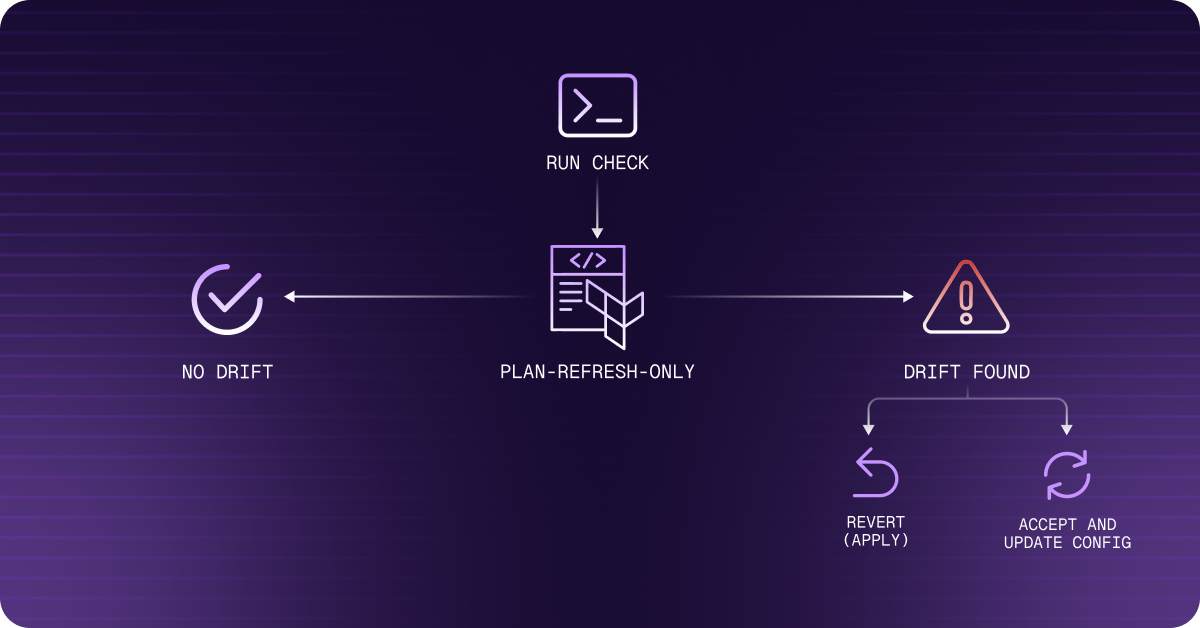
Command 2: terraform plan -refresh-only (Safest Inspector)
This is the recommended first step for any drift investigation. It queries cloud provider APIs for actual resource state and shows what the state file would need to update — without proposing any infrastructure changes. It requires explicit confirmation before writing to state.
Command 3: terraform state list & state show
Surgical inspection of individual tracked resources. Useful for comparing specific attribute values against what’s live in your cloud console:
Reference: Terraform State — HashiCorp Developer
5. Fixing Drift: Three Remediation Paths
The fix depends on one judgment call: should the real-world change be kept, or reverted?
Path 1: Revert to Config (Overwrite Reality)
Use when the out-of-band change was accidental, unauthorized, or temporary.
Path 2: Accept the Drift (Update Config to Match Reality)
Use when the real-world change was intentional and correct — for example, a database was correctly resized during an incident and should stay that way.
Path 3: Import Untracked Resources
For resources that exist in the cloud but are completely unknown to Terraform — created manually and never managed by IaC. Two approaches:
6. Automating Drift Detection in CI/CD
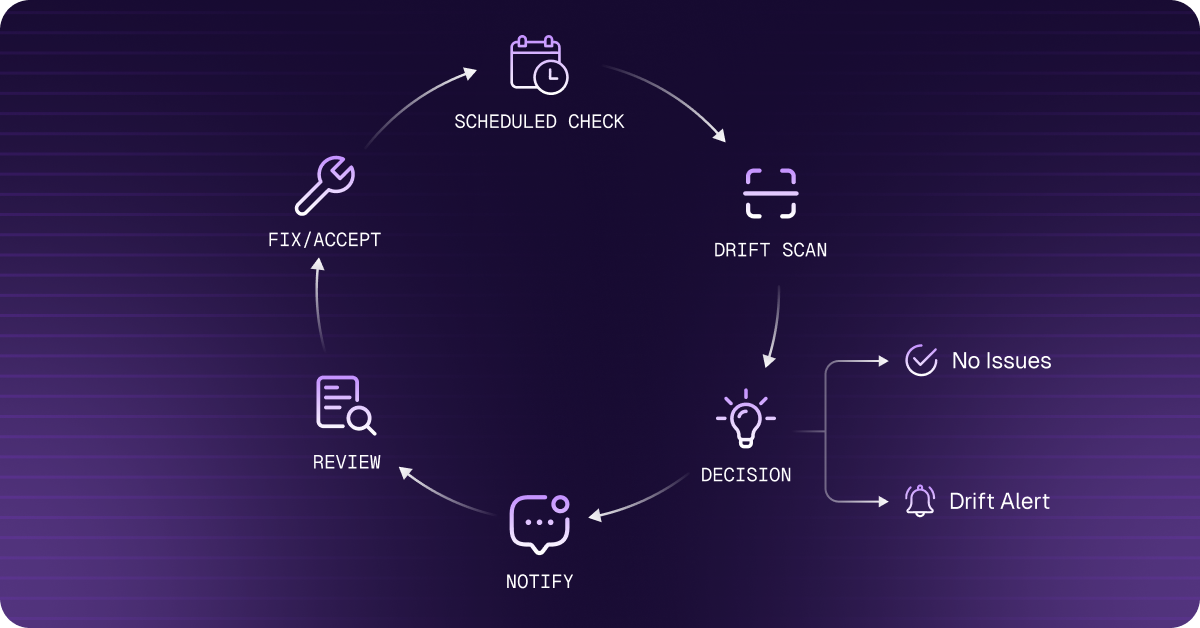
Manual detection doesn’t scale. The most reliable approach is scheduling drift checks in CI pipelines so your team is notified before drift compounds into an incident or an audit finding.
GitHub Actions: Nightly Drift Check with Slack Alert
lifecycle.ignore_changes — Silencing Expected Drift
Some changes are expected by design (autoscaling-managed counts, provider-managed fields). Use ignore_changes to exclude them so real drift stands out from background noise:
7. Prevention: Making Drift Structurally Difficult
Detection and remediation are reactive. These practices make drift the exception rather than the default:
- Enforce IaC-only changes via IAM — Restrict console and direct CLI access to production resources. Require all changes to go through Terraform-managed pipelines. If someone must make an emergency manual change, open a follow-up PR before the post-mortem closes.
- Mandatory PR reviews with plan output — Treat infrastructure code like application code. No direct pushes. Attach the terraform plan output to every PR.
- Remote state with locking — Use a remote backend with state locking to prevent concurrent applies and partial state corruption.
- Schedule nightly drift checks — The GitHub Actions workflow above catches drift before it compounds. A compliance control documented in code is stronger than a manual process.
- Use lifecycle.ignore_changes — Exclude expected managed variance (autoscaling, managed services) so real drift signal is clear.
- Move to Terraform 1.5+ import blocks — Declarative imports in config are reviewable in PRs, unlike CLI-only terraform import which leaves no audit trail.
8. Troubleshooting Common Drift Scenarios
Problem: Partial Apply Left Mismatched State
A terraform apply failed mid-run. Some resources were created/modified, but the state file now reflects a partial picture. Next terraform plan shows confusing changes that don’t match your intent.
Problem: Terraform Wants to Destroy a Resource You Didn’t Touch
Classic symptom of a dependency drift: a resource that another resource depends on (e.g. an IAM role, VPC, or security group) was changed outside Terraform, causing Terraform to plan a recreate cascade.
Problem: Drift Appearing from Cloud Provider API Changes
Some cloud providers update default attribute values (e.g. AWS changes default instance_metadata_service settings). Terraform sees this as drift even though you didn’t change anything. Fix:
Problem: State File Corruption / Locking Error
9. Third-Party Tooling for Continuous Drift Governance
Native Terraform commands require manual execution and provide no centralized dashboard across workspaces. These platforms extend drift detection into continuous governance with alerting, policy enforcement, and (optionally) automated remediation:
10. Frequently Asked Questions
What is Terraform state drift?
Terraform state drift occurs when your live cloud infrastructure diverges from what Terraform's state file and configuration expect. It happens when resources are modified outside the Terraform workflow — through cloud consoles, CLI scripts, external automation, or cloud provider auto-updates. Drift is invisible until you run terraform plan.
How do I check for Terraform drift without making changes?
Run terraform plan -refresh-only. This queries your cloud provider for the current state of all managed resources and shows you what the state file would need to update — without proposing any infrastructure changes or modifying anything. It’s the safest drift inspection command available.
What is the difference between terraform plan and terraform plan -refresh-only?
terraform plan both detects drift AND proposes changes to bring infrastructure in line with your config. terraform plan -refresh-only only detects drift (shows what changed in the real infrastructure) without proposing any remediation. Use -refresh-only first to understand the drift, then decide whether to apply normally or accept the real-world state.
Is terraform refresh deprecated?
Yes. The terraform refresh command was deprecated in Terraform 0.15.4. It overwrites your state file without showing you a diff or asking for confirmation, which makes it dangerous. Use terraform apply -refresh-only instead — it shows the proposed state changes and requires explicit confirmation before writing to disk.
How do I fix Terraform drift without destroying live resources?
Three safe options: (1) Run terraform apply -refresh-only to update the state file to match the live infrastructure, then update your .tf files to match; (2) Use terraform import or import blocks to bring untracked resources under Terraform management; (3) Use lifecycle.ignore_changes to declare that certain attributes should not be reconciled by Terraform.
How do I automate Terraform drift detection in CI/CD?
Schedule a GitHub Actions (or GitLab CI) workflow to run terraform plan -detailed-exitcode on a nightly cron. Exit code 2 means drift was detected. Pipe this to a Slack notification step. See the full workflow example in Section 6 above.
Does Terraform drift detection work across multiple workspaces?
Native Terraform CLI requires you to run drift detection per workspace. At scale, platforms like HCP Terraform (Standard Edition), Spacelift, or env0 provide continuous drift monitoring across all workspaces with a centralized dashboard and policy enforcement.
Conclusion
Terraform state drift is structural — the state-file model means any change made outside of terraform apply creates a gap. The goal isn’t to eliminate all possibility of drift; it’s to detect it quickly, remediate it safely, and build systems that make drift the exception rather than the default.
Your action checklist:
- Run terraform plan -refresh-only as your first drift inspection step — safe, requires confirmation, shows exactly what drifted.
- Add terraform plan -detailed-exitcode to your CI pipeline on a nightly schedule. Exit code 2 = alert your team.
- Use lifecycle.ignore_changes to silence expected drift (autoscaling, managed services) so real drift stands out.
- For untracked resources, use import blocks (Terraform 1.5+) and -generate-config-out to accelerate import workflows.
- Frame your nightly drift check as a documented compliance control, not just an operational habit. SOC 2 auditors love it.
- At scale, invest in HCP Terraform, Spacelift, or env0 for continuous, centralized drift monitoring across all workspaces.
Infrastructure drift caught early is a minor correction. Drift discovered during the next audit or incident is a crisis. Build the system that catches it first.
🚀 Stop Managing Drift Manually — Try Aiden for Infrastructure
Aiden for Infrastructure detects and surfaces drift remediation suggestions inline with your IaC workflow — no 2 AM scramble required. Visit stackgen.com/aiden-infrastructure to learn more.